Friday, July 13, 2012

Microsoft Surface - Can It Compete With iPad


Better days for Microsoft?


Everyone in tech is aware that Microsoft, the company that gave us Windows, has seen better days. Ever since Apple took over as the #1 computer company in 2004 after the fiasco that was Windows Vista, Microsoft has been struggling to get it's mojo back. With the premiere of it's Surface Tablet, Microsoft might be heading for brighter days. Maybe. While you can get a cheap tablet online for under $200 with a TigerDirect, or Newegg coupon, this isn't the market Microsoft aiming for. It has Apple in it's crosshairs, and success all depends on if the Surface Tablet can match the mighty iPad in price and performance. If it doesn't, this could be another fiasco for Microsoft like the Zune mp3 player, the Kin phone, or Windows ME and Vista. Microsoft has to be very careful about this one-it can't afford another failure.

The Surface Tablet-specs and info


On the surface, everything looks good. The Surface Tablet comes in two models; the Surface RT for home users, and the Surface Pro for business users. The Surface RT has USB 2.0 ports, runs on an ARM processor and only has 32 to 64GB of storage. The Surface RT is the bare-bones model for Web surfing, online videos, email and basic desktop programs. It's for the home user who doesn't need a lot of bells and whistles. Surface Pro, 128 is for the business user who needs a full blow Windows OS, dependable Web connectivity and a more powerful machine. It offers an Intel dual-core 128 processor, up to 128GB of storage, USB 3.0 ports and other such perhipherals for the business user. The most innovative thing about the Surface Tablet is the cover, which also doubles as a keyboard. That is a very attractive option for those who haven't gotten used to having a keyboard on the screen rather than a traditional keyboard. Also, the cover snaps right on without using magnets (the Apple solution) or not having a cover at all.

Problems


The big problem with the Surface Tablet so far is that Microsoft will be manufacturing these models with only Wi-Fi connectivity, instead of wireless broadband connectivity. That might present a problem, especially for business users who need connectivity, wi-fi or no wi-fi. Another big problem is the Surface's low battery life. Compared to the iPad, which has a 10-hour battery life, estimates have given the Surface Tablet a battery life of 7.5 hours, which is 25% less than the iPad. Another problem is cost. Microsoft is looking to take tablet giant Apple on by launching the Surface. Granted, the iPad is expensive, but not half as expensive as the Surface Pro, which will start at well over $600. Granted, the Surface RT is going to go for $500. However, since the iPad starts at $499, Microsoft is deliberately overpricing itself. In these more cost-concious days, that's not going to go over very well. If Microsoft is looking for a much needed success with the Surface Tablet, they might need to reconsider some of these problems like cost and battery life if they want to overtake Apple.

That said, the important question to ask at the moment is this: Do you want to give up your iPad for a Surface Tablet?

Melinda Tanner is a freelance technical writer with over 20 years experience in various fascets of technology.

Tuesday, April 24, 2012

How Google Works


Millions of people a day go to Google.com and type in something of relevance to them.

They may be searching for music videos, finding a local plumber or researching new cars; however most everyone takes this commodity for granted.  But for those curious folks out there, have you ever wondered how Google sifts through billions of documents to find the 10 best for any search term you can throw its way?

While it probably would take a few days to truly comprehend the phenomenal amount of data crunching that is necessary to do this in under a second, long-time Google employee Matt Cutts attempts to break it down and give you a brief history of Google search in under 8 minutes!

Check out his video below:


Anyone who deals with websites understands how important Google search can be to their marketing plans, and if there's anything that Matt Cutts stresses, it is that quality content is the number one factor for succeeding long-term with Google.

When you build quality content for your readers and develop an audience, Google begins to take notice and that is when you start to see your traffic increase.

Tuesday, April 10, 2012

Does My Computer Have Bluetooth?


It is common that folks who already own a MacBook or PC will buy a Bluetooth device, such as a mouse or keyboard, but then after the fact ask themselves a simple question: Does my computer have Bluetooth support?

Don't fret, because it is very easy to find out whether or not your computer supports Bluetooth communication. And even if it does not, there are external options like a USB dongle which will add Bluetooth support for all of your devices.

For Windows


As far as operating system support goes, Microsoft has included native support for Bluetooth with the releases of Windows Service Pack 2 and 3.  Before these versions, it was necessary to manually install the drivers for your Bluetooth hardware.

To find out if your computer has Bluetooth, go to the Control Panel, and look for the Bluetooth Devices icon as shown in the screenshot below.


If you don't have this "Classic View" option, Go to "Hardware and Sound" and under the first menu option, "Devices and Printers", look for the link to "Add a Bluetooth device".  If you see these links or icons you should be ready to connect new Bluetooth devices.

An even better way is to check if your computer has the hardware to handle Bluetooth.  To do this, you may  go to the Search Bar in the Windows Start Menu and type "Device Manager", then click on the first item to open.

You can also right-click the my computer icon on the desktop and go to "Properties".  From there you will find the link to the Device Manager on the left sidebar.

With the device manager open, find and expand the network adapters menu. If your computer supports Bluetooth then you will see one or more adapters listed as shown here.


For Mac OS X


While Bluetooth support is varied among computers with Windows operating systems, it is widely supported by almost all of the latest couple generations of Macs and MacBooks.

There are a few easy ways to find out if your MacBook has built-in Bluetooth.

First, take a look at your menu bar at the very top of your screen for the Bluetooth icon, because this is a clear indication that your device is looking for nearby devices to connect with.


If this is not visible, click the Apple button at the top left of the menu bar and open "System Preferences".  Look under the "Internet & Wireless" section for the Bluetooth icon and open this screen if the option exists.


If you see the following screen which states that Bluetooth is on when the checkbox is ticked, you are ready to rock!  You will also find the checkbox at the bottom of these screen which toggles whether or not Bluetooth status is displayed as an icon in the menu bar.


Much like Windows, if you want to dig deeper into the actual hardware you may do so by clicking on the Apple button at the top left of the menu bar and then click "About This Mac".  From here, select "More Info".


This brings a screen which gives you an overview of all the devices, storage and memory associated with your Mac.  To further inspect the hardware select the "System Report" button.


This will display a list of all the hardware components that are part of your system.  Select Bluetooth from the left sidebar, and if there are hardware settings listed then you know that your computer has the necessary adapter to work with Bluetooth devices.


Conclusion


So there you have it - several ways for both Windows and Mac to answer the question, does my computer have Bluetooth?  If you still don't see any trace of Bluetooth, check an online electronics retailer for external USB Bluetooth adapters which will work plug-n-play style to give you full support in any scenario.

Monday, April 9, 2012

Instagram Acquired By Facebook


Instagram, one of the most popular photo sharing apps for iPhone, has announced that they have agreed to be purchased by the most popular social networking site, Facebook.

This mega merger comes very shortly following Instagram's long awaited release of an Android app, and will cost Facebook $1 Billion.  While this is a hefty fee, it gives them a powerful software base to help build and streamline their photo sharing services.

Despite the transaction, Instagram CEO Kevin Systrom assured it's users on their blog that the app and platform will not be changing anytime soon, having this to say:
It’s important to be clear that Instagram is not going away. We’ll be working with Facebook to evolve Instagram and build the network. We’ll continue to add new features to the product and find new ways to create a better mobile photos experience.

The Instagram app will still be the same one you know and love. You’ll still have all the same people you follow and that follow you.You’ll still be able to share to other social networks. And you’ll still have all the other features that make the app so fun and unique.

We’re psyched to be joining Facebook and are excited to build a better Instagram for everyone.
This deal is sure to reverberate for a few days as the effects slowly begin to take shape.  Many are comparing this to the deal Google made to acquire YouTube and its video services.

Only time will tell if this deal is as successful for Facebook as YouTube was for Google, but for the folks and investors at Instagram this is a very nice payday for many years of hard work.

Saturday, April 7, 2012

Flipboard for Mac or PC - Alternatives


If you own an iPad or an iPhone, there's a good chance that you've heard of the app called Flipboard.

Flipboard presents your social and RSS feeds in a beautiful magazine style layout which is easy to navigate between pages swiping gesture.  With account integration including Facebook, Twitter and Google Reader, it's no surprise that it has become one of the more popular apps available on the App market today.

However this popularity has caused an increased demand for a Flipboard for Mac or a Flipboard for PC version.  The company has acknowledged this demand, giving the following statement:

"We definitely believe the desktop is part of our future, but it's still on the whiteboard and not something we are launching soon. The desktop requires a lot of attention to design and UI and we'd like to take the time to get it right."

I have also found confirmation from an employee via their Support Forum that they are going to look into a PC version as well as a web app which is compatible with multiple hardware platforms and operating systems.

Until that becomes a reality, we are stuck with finding alternatives to Flipboard for Mac.  Below you will find a solid list of useful RSS readers and other magazine style apps which will suffice until an official Flipboard version is released.

Google Reader


Google Reader does a nice job accumulating your feeds from across the web into an easy to use interface.  It may not be as elegant as Flipboard however I have been a user for several years and their most recent UI update was very well designed.


Feedly


Feedly is another web-based app which you may sync with your Google Reader account.  The layout of Feedly is slightly more clear and straightforward compared to it's competitors which many of its users find appealing.


RideSurfboard.com


Ride Surfboard is a pretty cool service which allows you to plug in a URL, and it presents all the articles from that URL into a magazine style layout with pages.  This web app uses HTML 5 and CSS3 technology, so you want to be sure to use a modern and updated browser when you view this site - preferably Safari or Chrome.


Paper.li


This is another cool Social Reader, which finds links shared through friends on your Twitter account and builds these articles into a newspaper style layout.  If you have a professional Twitter account, this is a great way to see important industry news at a glance.


Friday, April 6, 2012

Top 6 Productivity Apps for iPhone


The iPhone is an amazing device when you think about the multitude of ways it can help people run their businesses more efficiently.

Unless you are coding or doing graphic design work where you need a computer, an iPhone along with its plethora of apps is likely all you need get the job done from anywhere in the country.  With this entrepreneurial spirit in mind, let's highlight some of the more useful productivity apps available on the App Store.


Gmail


As much as I like Apple products, I still have an overwhelming affection for many of Google's services. The main reason I was hesitant to switch to an iPhone was the lack of a native app, but I am happy to say that since downloading the new Gmail app everything has been running smoothly with my daily communications.


Dropbox 


Dropbox is and incredibly easy to use file syncing app which works across multiple platforms.  Every free user gets 2GB of storage and can obtain more by referring friends or upgrading to a Pro account.

This app on all of my devices gives me incredible flexibility when I need to access important business files away from the office.  In addition it has provided me another layer of backup for all my important files between my main PC and my MacBook Pro.


WordPress


If you own a website or run a blog, then you need to download the WordPress app today.  While you won't find every feature on the web-based administrative panel, it gives you a simple way to edit content or interact with your audience while you can be by your computer.

There is also built in support for multiple accounts if you run several websites.


Flipboard


If you love gathering news feeds from across the web for personalized articles to keep you in the loop of your industry, there is no better app than Flipboard.  The main reason that I chose Flipboard was because of the Google Reader integration, and since installing it I have not looked back once.  The app also features Twitter integration so you can read your feeds and tweets in the same place!


LogMeIn


The LogMeIn service allows you to log in and control a remote computer from anywhere as long as you are connected to the Internet. Not only is this helpful for your own computers, but if you have any clients that need computer work it is a great way to save a trip to their office.

You would think it might be difficult to control your computer from an iPhone given the lack of screen space, but the developers have done quite a nice job to include a good amount of touch functionality along with a very crisp screen display to make the transition as seamless as possible.


GoTasks

I know there is a lot of fuss about the new and cool to-do list app called Clear, but I am quite happy with GoTasks - and mostly, again, because of how friendly it is with Google Tasks integration!  While I am working on my computer I like to leave a tab open with Gmail and daily tasks, and now I can update these while I'm on the road.  While the graphical interface is not as fancy as Clear or other apps, it is minimalistic and very intuitive.

These are the apps that I live and die by on a daily basis - but what about you?  If you have any productivity apps that make your life easier, post them in the comments below!

iPhone 5 Release Date


UPDATE - 4/9


An employee at Foxconn is now refuting this previous report, saying that they did just receive an order but they are not going to be out until Fall of 2012 - which is what most industry insiders expected as the likely date.
--

Several rumors are swirling around the computer world that the new iPhone 5 is going to be released sometime this summer.

With close to 20,000 jobs opening in China for electronics manufacturing, you might say that where there is smoke there is sure to be fire.

No official announcements from Apple have been made, however there is wide speculation regarding the upgrades and features that we are likely to see with the iPhone model.  Some people even believe that the manufacturing is not for the iPhone, but instead of for a Mini iPad.

Our bet is on the iPhone, and I anticipate that it will come with a wide variety of updates to appease the masses who did not think the iPhone 4S brought enough features to warrant a release event.

Regardless of the stealthy route that Apple has decided to take, one thing is for sure -- when the product is released it will be followed by mass hysteria around the globe!


Wednesday, October 12, 2011

Get on Facebook at School


Alright, kids. You are clearly here because you want to know how to access facebook from school. I've been there, and I'm going to give you several ways that you can get on Facebook at school if you are bored in study hall or while you are doing work in the library.

Web Proxy

The most well known method to bypass any filter that your school may have is using a web proxy. Web proxies are websites that act as an intermediary between your computer and your desired website.  You tell the proxy what site you want to visit and it makes the request for you, then once it receives the page it transfers that to your web browser.  Since the proxy server does not have any restrictions you will be able to get on Facebook at school. Below is a list of multiple proxy sites that you can use to unblock Facebook.

http://www.hidemyass.com
http://www.ultrafastproxy.com
http://www.proxeasy.com
http://www.hurryproxy.com
http://www.blewpass.com
http://www.newipnow.com
http://www.proxify.com
http://www.proxfree.com


Use Facebook's IP Address

This is a work-around that may or may not work for you, but it's easy and worth a try if you want to access Facebook from school.  Instead of typing in 'facebook.com' in your browser's URL bar, type in the IP address which can be found as follows:

  1. Open command prompt by going to Start Button > Run > Type 'cmd.exe' and press Enter.
  2. When command prompt is open, type 'ping facebook.com' (without quotes) and you should see that packets are being delivered to indicate a connection exists between your computer and the web server.
  3. Take note of the IP address that is being displayed, and type this into your browser's URL bar to see if Facebook can be accessed now


Remote Control Your Home Computer

If the first two options fail, there may be a third way which you can get on Facebook at school.  If you are a bit more advanced with your understanding of technology, you can install a program called LogMeIn on your home computer, whether it's a Windows or a Mac.

With LogMeIn installed on your home device, you can now access and remotely control your home computer from any web browser with an internet connection via the LogMeIn website!  Depending on the version of the software and which browser you use, you may need to install a plug-in, but they do have an option to run a Java applet which should alleviate the need to download anything on a school computer.

So there you have it, I gave you a handful of methods on how to unblock Facebook while at school.  Even though you may want to ignore your teachers with this new found information, I recommend that you continue learning and paying attention like a good student - only get on facebook at school if you truly have time to kill!

Friday, June 17, 2011

How to Access Router Configuration


Despite the prevalence of wireless routers, very few computer users know how to access router settings should they find themselves with networking issues. I'll show you how to easily find out the information necessary to do this.

For Windows users:

Open the command prompt by clicking the Start button, typing 'cmd' into the search box and pressing enter.


With command prompt open, type 'ipconfig' to display your network settings and IP configuration. Here you can find information such as your IP address and your router's IP address. The router IP address is listed as the default gateway - Linksys and Netgear routers will generally have an IP address of 192.168.1.1 or 192.168.0.1. This is not the case with all routers, however, so please double check your specific default gateway before proceeding.

Skip past the Mac users section of this tutorial to continue...


For Mac Users:

Open system preferences by clicking on the Apple icon at the top left of the menu bar.


Navigate to the network preferences and locate the IP address of your router as shown in the image below.


For BOTH Windows & Mac:

Once you know your router's IP address, copy and paste this value into your default browser's (Internet Explorer/Mozilla Firefox/Google Chrome) URL bar. If you are connected, the router configuration web page should be displayed and you will be prompted to login.


Only you may know the login credentials that you setup when your router was installed, however it is common that if you did not choose a password, the router is given a default username and password to access this configuration. You will have to consult with your router's instructions in order to determine what this might be. It is common that the username and password are both set to 'admin', or may be left blank.

Once you've reached the router configuration web page, you may tinker with some options, but don't mess around if you are not experienced or don't know what you are doing. Some of the more common applications are port forwarding, security restrictions, and setting a wireless key for guests to access wi-fi.

Wednesday, May 25, 2011

How to Move Apps to SD Card for Android


After having my Droid for about a year, I was hit with the message "phone storage space is getting low". I subsequently ignored this thinking that it may have been an error. I was unaware of the amount of apps that I had installed and how much space it was taking up on my internal memory.

Within a few days my text messages were not being delivered because I did not have enough space. As you might imagine, this went from a minor problem to a major complication. I knew I had to move apps to the SD card to free up internal memory.

The good news is that it forced me to put my thinking cap on and I found multiple solutions that I wish to share with everyone today. Hopefully this will save you a couple of headaches when trying to rid your phone of this issue!

  1. The first step is to check how much memory you have available. I have read on forums that this message can pop up in error so this is a good way to determine whether you need to fix the problem. Go to Settings -> SD Card & Phone Storage, and you will see the screen below. Your internal phone storage is listed at the bottom. As you can see I have a bit cleared out from when I performed the upcoming steps. If you are in the range of 20MB to 40MB, it's time to start thinking about clearing up space.


  2. The easiest way to free internal memory on your Droid is to delete any apps that you don't use or need. You may not want to resort to this, but it's a good way to keep your phone a little bit cleaner. If you really don't want to delete anything, then it's time to move apps to your SD card. If you only want to move a few, you can do this manually. Go to Settings -> Applications -> Manage Applications. Once there, click on the 'All' tab to reveal all of your applications. They should be sorted alphabetically by default, but if you want to sort by size (which is more useful for freeing up space!) press the info button (next to the home button) as shown below:


  3. With the new Froyo operating system update, you are now allowed to move certain programs to the SD card. Click on the app that you want to move and either select to uninstall or move to SD card. You will find that the 'Move to SD Card' may be grayed out on some applications - don't despair, they can be moved, more on that later....


  4. If you have multiple programs to move, there is a great app called App 2 SD Free. When you open the program it will build your application list and organize them to let you know which can be moved to the SD card. It will also prompt you to delete cached data from all apps - this is another trick to clear up some space, although when you begin to run apps again this space will be filled back up so you still will want to move your apps to the SD card.


  5. Now for the meat of this tutorial - how to unlock the ability to move all apps to the SD card. And most importantly, you can do this without root access to your phone.

    First, download and install the Android SDK. If you don't have a technical background, this stands for Software Development Kit, and it is used for users who like to tinker with and write apps for Android. Don't worry, you don't need to have a degree to figure this out, though :)

    When the installer is finished running it will prompt you for which packages to install. You can leave the default components and select 'Install'.

    You may also need to install Java SE Development Kit (JDK) in order to run the Android SDK - the link for that download can be found here - Download JDK.

    If the Android SDK installer still does not find Java SE Development Kit after you have installed it, there is a simple bug that has an easy fix - press the back button on the installation, and then click the next button. You should be able to move forward now.


  6. Once the Android SDK is setup, it's time to connect your phone to your computer via USB. Do not turn on USB storage, instead navigate to Settings -> Applications -> Development and check 'USB Debugging'. You may have to confirm that you want to do this - go ahead and click the OK button.


  7. Next, you will need to download USB drivers to your phone. If you have the T-Mobile G1, T-Mobile myTouch G3, Verizon Droid, Nexus One or Nexus S you can download the Google USB driver. If you do not own one of these smartphones, you will need to download your OEM USB driver.

  8. Once your drivers are successfully installed, open Command Prompt - you can do this by clicking the Windows Start Menu and search for 'cmd' in the search box. It should be the only program to come up, so you can press enter to run command prompt.

    Type cd "C:\Program Files\Android\android-sdk\platform-tools" and hit enter to change directories. Double check this is where your copy of Android SDK was installed. If you have a 64-bit computer, but the software is 32-bit, you will need to replace Program Files with Program Files (x86) - Thanks Daagor!

    Type adb shell, hit enter and you will see a dollar sign ($) prompt appear.

    Type pm setInstallLocation 2 and hit enter. You will get this same message echoed back, and another dollar sign prompt will appear. This is what switches your install location to your SD card - you can now exit from the command prompt.


  9. Return to Settings -> Applications -> Development and uncheck USB debugging before you disconnect. Reboot your phone and you are ready to rock!

  10. When your phone restarts, open up App 2 SD Free and you will find that several more apps can now be moved to the SD card!!

    IMPORTANT NOTE: Keep apps that require services running in the background on your internal memory. For me, this includes all Google apps that sync with my account, apps where I use a homepage widget, and other important apps.

    Every other app can be moved to the SD card to recover your internal storage space.

Monday, May 2, 2011

iPhone 5 Pictures


As with each product from Apple, there is a ton of anticipation for the release of the new iPhone 5. The expected date of arrival is fall of 2011, however the forums are currently buzzing with iPhone 5 pictures and rumors of what features may be included with the new edition.

Keep in mind that nothing has been officially released by Apple, so this is all conjecture up to this point. However there is no lack of excitement which has prompted many people to post photos of potential prototypes with changes ranging from a larger screen area to a slide out QWERTY keyboard.

The following iPhone 5 pics comes from a video on YouTube from a parts manufacturer that may have a hint as to what the contents of the iPhone 5 will consist of. Also included is a close up of the aluminum frame which will house the device. The full video can be found below the following two pictures.


The following photos are a prototype that will most likely not come to fruition, but hey they should at least make their rounds and further inspire the Apple developers. This particular iPhone 5 pic includes an updated SMS display and a neat way to display your contact list.


I think this image of the iPhone 5 display could be very real, and when compared to the previous version it gives the user a bigger area to work with for an improved experience.


The infographic below is a terrific round-up of all iPhone 5 rumors to date, including photographs and specs. This picture can be seen in it's full resolution at NoWhereElse.fr


As always, if you are not one to partake in rumors you can find the latest information about official iPhone 5 pictures straight for the source - iPhone by Apple

Wednesday, March 16, 2011

Short Throw Projector


If you have had any involvement with a brick and mortar business or organization, chances are you've been to your fair share of meetings. In today's technological environment, almost every presentation is created with slide-show software and displayed via a projector. However, many projectors are designed to accommodate larger halls where they are placed very far back in comparison to where the screen is positioned. Often times, these will not function properly in a very small area such as a confined conference room. Don't despair though, because there is a specific device for this problem which is the short throw projector.

Short throw projectors are unique in that they can display full quality images and videos onto a large screen from a very short distance. This is beneficial because it can be used without worry of a shadow being cast from the projector light bulb and the person at the front of the room.

When buying a short throw projector, read the specification sheet for the particular model and you will generally see a feature known as the throw ratio. This number is a ratio of the distance from the projector lens to the screen to the actual screen width. A big throw ratio will equate to a longer distance from the projector to the screen, however these optical systems tend to be more focused than their shorter throw counterparts. The convenience of a short throw project should not go unnoticed, because they can be used in a wider variety of situations, such as the home theater or aforementioned business meeting room.

The throw distance (distance from the lens to the screen) for a short throw projector can be as low as 0.5 feet, or as high as 8 feet. With this in mind, it's best to do a little math before hand and take a few measurements around the room where the projector will be placed.

If you already own a projector but need to upgrade to a short throw projector lens, that is also a viable alternative to buying a new system. These can cost anywhere from $500 to a few thousand, however they will give you the flexibility to move your projector to several locations should you want to transfer it from room to room. Many brands do come with a short throw attachment when you purchase them, including Casio, Hitachi, InFocus, Panasonic, Sanyo and NEC to name a few.

Whether you want your own home theater or you are a business owner looking to upgrade presentation quality, you can benefit from adding a short throw projector to any room of your house or office.

Wednesday, March 9, 2011

Slate PC Reviews


Portability and mobile computing are truly the wave of the future when it comes to technology and the PC consumer market. People are demanding more power, speed and updates at a fascinating rate which has led to multiple improvements and a healthy dose of competition between the companies who are building these computers. First it was laptops, then a few years ago the netbook was introduced. Today people can carry a smart phone in their pocket and have nearly all the capabilities of a PC. But recently there has been a huge shift in popularity from the smaller computing device to a slate PC tablet.

Slate computers have the advantage of a larger, more vibrant display that can properly render full web pages in amazing detail. In addition, the majority of slate tablets have capacitive touch screen where you can swipe the screen with your fingers.

However with so many options out there it can get confusing when deciding which brand to go with. A byproduct of the rapid rate of improvement in these devices is the lack of consumer knowledge each time a new model is released. I want to clear the air about some misconceptions and give you more details so you can choose the correct slate tablet PC to buy.

  • Dell Streak - Dell has released it's version of a tablet PC with the Streak. Although this is more of a phone sized tablet, it has received some very positive reviews from its users. The Dell Streak comes equipped with the Android OS, 512 MB of RAM, built in GPS, a 5 inch LCD screen with a resolution of 800 x 480 pixels, two cameras and the ability to expand storage with a MicroSD card. They have announced an upcoming 7" model and may have plans in the works to release a full sized 10" model in the future.

  • Asus Eee Slate - Asus has a history with tablets and slate PCs, but they are preparing to release one of the first Windows 7 tablets that is officially endorsed by Microsoft. The Asus Eee Slate EP121 boasts a much larger amount of RAM capacity, either 2GB or 4GB, a large high resolution 1280 x 800 pixel screen and even an HDMI output port so you can connect to your HDTV. They may not be the most powerful name out there but they have vast experience with tablet design and their newest model has already caused a buzz in 2011 at the CES convention. Check out the cool ad at the end of this bulleted list. They are also releasing two Android 3.0 Honeycomb powered tablets around the spring of 2011 which will be a notch below the specs of the EP121, but at a lower cost.

  • Advent Vega - This slate PC was released in late 2010 in the UK, but it has many cool features, most notably a very reasonable price. The Vega runs on the Android 2.2 Froyo Operating System and has the computing power of a dual-core processor. The front facing camera is a decent 1.3 MegaPixels, but the screen size is better at a resolution of 1024 x 600 pixels.

  • Motorola Xoom - Because of the popularity of the Droid, which propelled the Android OS into significance, many folks believe that the Motorola Xoom will be the closest competitor to that fruit company's slate computer that we've all heard of! In fact they won the 'Best of CES' award this year at the biggest electronic convention in the world. The specs are pretty impressive, with a 1280 x 800 pixel resolution, 1080p video playback and a 2 MP and 5 MP camera, facing the front and rear, respectively.

  • Blackberry Playbook- As one of the major smart phone providers today, there was little doubt that blackberry would enter into the slate PC game. The screen resolution is a notch below the Xoom, however the Playbook's front facing camera is actually 3MP, a bit of an improvement over many other tablets. In addition to 1080p HD video playback, it also has expansion ports for micro USB and micro HDMI. The screen is 7" and the processor is a dual core for maximum performance. The other added bonus is that the Blackberry 4G network will come with the Playbook if you decide to upgrade from the WiFi only model. As always, BlackBerry will remain corporate friendly with their seamless compatibility options.

  • HP TouchPad- HP is beginning to focus on the tablet market and will release their version of the TouchPad which will run on the proprietary webOS operating system which they purchased from Palm a few years ago. With specs that will rival any slate tablet PC on the market. The Palm derived OS become prominent with the release of the Palm Pre and it was widely known for it's impressive multi-tasking capabilites when compared to other tablet operating systems. While more details are upcoming, if you wait until summer this may be the latest and greatest in the slate PC world.

  • HP Slate 500 - If you don't want to wait for the TouchPad, or simply want a better deal another good option is the HP Slate 500. The main difference between this model and the upcoming TouchPad is that the Slate 500 runs Windows 7 instead of webOS. The initial design started as an e-reader, but blossomed into a more full fledged media experience, hence the tablet design. The specs include an 8.9" LCD screen with 1024 x 600 pixel resolution, 64 GB of storage with a solid-state hard drive, and 2GB of RAM to speed things up. You may also use the touch screen with a stylus for more pen-like functionality, including hand written notes.

  • Samsung Galaxy Tab - Samsung's first big tablet release has come with the 7" Galaxy tab. It is definitely worthy, but it does have a few inferior specs when compared with newer and upcoming tablets that have yet to hit the market. It has only a single-core processor and runs off the popular Android 2.2 Froyo OS. Another noteworthy feature is that the slate computer is encased in plastic, not metal. Due to this it isn't as sturdy, however this does make it lightweight.

  • Fujitsu Stylistic- This model of tablet PC is made for people on the go, working both indoors and outdoors. The case is semi-rugged with a 12" display, has a solid-state 64GB hard drive, comes with a stylus and supports multiple pen-based functions including a digital notebook where you can write without the use of a real or virtual keyboard. The processor is an Intel Core 2 Duo, providing multi-threading when running several programs at once. It also has quite a bit of security built within, such as a finger print scanning sensor. This might not be ideal for the casual consumer but for a business man or contractor who is on the go and outside often, it is an impressive device.

  • Panasonic Toughbook Tablet - If there were ever a blue-collar slate pc, the Toughbook series would fit the bill. They already have released laptop versions, but Panasonic is venturing into the tablet world. As a true outdoor computer, the 10"+ screen is still viewable in the sunlight and the casing is completely sealed for usability in every weather condition. If you are looking for a top of the line field slate tablet, look no further because you've found one of the best.

  • LG G-Slate - The G-Slate tablet PC which will be released later this March is sure to be a hit due to the strong brand of LG. Not all specifications are currently known but what we do know is that it should be around 9" with the Android 3.0 Honeycomb OS. I'm sure this variety will be comparable with the other new slate tablet releases over the Summer.

  • ExoPC Slate - This company hails from Canada and they have released quite a powerful tablet computer with their ExoPC Slate. It is a Windows 7 based slate PC with 2GB of RAM, a 1366 x 768 resolution on its 11.6" LCD screen. It comes with 2 USB 2.0 ports and a mini HDMI port if you want to connect your slate to an HDTV. Given the better specifications compared to most other tablets, it comes with a higher price tag. You can expect to pay somewhere between $700-900 for this model.

  • ViewSonic G Tablet - Here is another Google Android based tablet, although it was initially released with the previous version, Android 2.2 Froyo. The LCD screen is a wide 10.1" with a 1024 x 600 resolution. The processor is a 1GHz dual core with 512 MB of DDR RAM, and 16GB of internal memory, however this can be expanded with the use of an SD card. The best part about this tablet is the price - you can probably find one around the $300 range, so what it lacks in pure processing power it makes up for with affordability.

  • Acer Iconia A500 - This bad boy is shipping out to hit the market beginning in late April, and it carries an introductory price tag of $449 - a very competitive starting point indeed. The Acer Iconia tablet will feature Android's Honeycomb 3.0 operating system and it's specifications are eerily similar to the Motorola Xoom tablet. The main difference comes in the hard drive size and graphics capability. The hard drive will start at 16GB, however there will be an SD expansion slot if you should need to bump up the storage space. As for the graphics card, the Nvidia GeForce can output 1080p HD quality video via the HDMI output port, and can display 720p HD video on the tablet itself.

Hopefully you aren't completely overwhelmed after reading that list! I know it can be tedious but the fact of the matter is that most of these tablets are built with a lot of similarities. What it ultimately comes down to is how much you want to spend, how powerful a slate PC you want, and how comfortable you are with certain operating systems. For example, if you already own an Android based device, it will be very easy for you to get an Android based tablet. Do a little research, read a few customer reviews and you'll find something that fits your needs. With that, I'll leave you with this great commercial below for the new Asus slate tablet.


Monday, March 7, 2011

iPad 2 For Verizon


On Friday, March 11th Apple will release it latest and seemingly greatest invention to date - the iPad 2. The iPad 2 for Verizon will be unveiled on the same day, but considering that pre-ordering is not an option this time around, the supply will almost certainly be thwarted by the immense demand.

So why do so many Verizon customers want the new iPad 2? The new IOS4 operating system for one is a perfect reason. IOS4 is an operating system that is considered leaps and bounds ahead of the competition. Known as stable and secure IOS4 allows users to multi-task using any of the sixty thousands apps that are available for your iPad 2, including, but not limited to, standard apple apps such iBook and Garageband. Apps can now be organized using folders creating a more efficient streamlined setup.

A new feature that the iPad 2 provides is the use of two cameras; one on the front and one on the back. These two cameras make using Apple's Facetime App easy. The app allows to video call with anyone anywhere and still have another camera at your disposal. So those care about near and far can see more than simply your face they can experience your surroundings and vice versa.

Simply put the latest iPad 2 for Verizon, which will start at half a grand ($499 to be exact), is/will be the best most technologically advanced mobile device on the open market with enough bells and whistles to wake up the neighbors or at least make them envy your latest toy. Not only that, but much like that new and improved new year's resolved body of yours the iPad 2 is smaller roughly 9.5 x 7 inches and weighs a minuscule 1.35 pounds. Yet this iPad is still equipped with a 25-watt hour rechargeable lithium-polymer battery capable of sustaining for 10 hours before charging and 9 hour sojourns via the internet.

Verizon will offer a variety of data plans on its 3G network ranging from 1GB for $20/month to 10GB for $80/month.

Saturday, March 5, 2011

iPad Price Drop


The iPad is quickly approaching it's anticipated 1st birthday, and what better way to celebrate than by an iPad price drop to the already stellar value that Apple has provided technology consumers.

The phenomenon caused by the iPad's release last year has shocked the computer buying market because people are starting to desire the slim and portable nature of the device, along with the 'cool' factor that you just cannot get from your standard laptop, not even the Macbook. The apps make it a breeze to do things like reading news articles, playing video games, checking updated sports scores or even transferring money from your bank account to your credit card bill. People love the ease of use and since most computer users don't need excessive processing power, they are not limited without a keyboard or enterprise level software such as Adobe Photoshop.

The iPad is rapidly becoming a worthy competitor to other computers, dramatically cutting into their sales figures. And even with more tablets entering the market in the coming months, it looks like the landscape is still going to be dominated by Apple for some time to come.

On March 2nd, 2011 Apple announced that it was going to be releasing a newer sibling to the original iPad - the iPad 2. This is great news for consumers for a variety of reasons. Firstly the iPad has been without a doubt the hottest selling item on the technology market in the past year. The base price was initially set to $499, but now with the coming of the next tablet, they have authorized a price cut of $100, bringing the new starting price to a very reasonable $399. If you are the type of person who enjoys having the newest gadget and aren't concerned with the money you should go for the iPad 2. However if you want to save some cash and still get your hands on a fabulous piece of technology, this new iPad deal is perfect for you.

Now is your best opportunity to take advantage of the iPad price cut - with Christmas over and the summer approaching, there is no better time to grab this wonderful gadget at a reduced rate. While the new iPad 2 has various features that you might be interested in, I tend to believe that most users don't utilize the power enough to pay the difference in price for the newer version. The first version of the iPad is more than capable enough for the average buyer in terms of extensibility and diversity on the app market. If you own a Macbook, I recommend it even more because syncing your iTunes and media library will be a snap and the iPad makes a wonderful entertainment device when you are on the road.

All in all, I think every consumer should look into the 2011 iPad price drop. I'm sure there are several buyers who are on the fence but if you use the machine on a daily basis you will undoubtedly get your money's worth and be pleased with your purchase. Go ahead, you will be glad you did.

Friday, February 11, 2011

Flash Player For iPad


NOTE: If you are viewing this post from an iPad, you will want to switch to your Mac or PC to view the embedded video tutorials (yes, they are flash based). If you follow these and move forward with this updated solution, you will have your very own flash player for iPad!
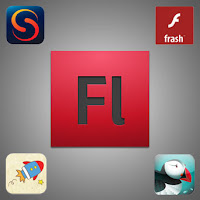
Apple has been in a lengthy and very public struggle with Adobe regarding new web technologies. As most of you may know, Adobe Flash content is not supported on any Apple devices such as the iPad and iPhone. Steve Jobs has been outwardly negative, and even downright scathing when it comes to third party technologies and software that come between the platform and the developer. The reason behind his motive is that that developers would not be able to take advantage of system enhancements unless the third party applications were using them - in this way, the developer's application performance was inherently tied to the underlying software and not the platform itself. Yup, it's unlikely there will ever be a native flash player for iPad.

Now, a few critics of Steve Jobs might say that this is a foolish decision because Adobe is one of the major software companies around and they do not release sub-par products. However, when you look at their track record as it pertains to Mac support you may sympathize with his reluctance to support Flash player. As it turns out, Adobe was the last major third-party software developer to fully support the Mac operating system, doing so with their recent CS5 Suite release.

As much as I may agree with Steve Jobs thought process, the bottom line is that users are the ones who see the detrimental effect. So many websites are developed in Adobe Flash due to the rich media you can create, and many folks now-a-days are using their iPad as a full-time computer. Put 2 and 2 together and you can see that people are not getting the complete web experience.

Frash

The battle between Apple and Adobe Flash is ongoing, but there is surprisingly great news when it comes to an iPad Flash player update. If you have a jailbroken iPad, you can install the software package known as Frash (developed by Comex), which ports Flash support. Frash is still in the beta stages of development so it may have a few bugs here and there, but it provides a fix that many users had been looking for.

Frash has become a go-to option for breaking this barrier despite Apple's negligence. As I mentioned previously, in order to install Frash on your iPad, you must jailbreak it first. Spirit Jailbreak is a simple and easy option for accomplishing this first.

Once that is in place, here is how you install Frash (You are doing this AT YOUR OWN RISK - I'm not responsible if you perform these tasks incorrectly or otherwise damage your device while trying to install this iPad Flash player):
  1. Search the internet to find and download Frash.deb. I believe these are currently located on GitHub, however they may be available on other servers around the web.
  2. You must ensure you have file access capability on your iPad. If you have a Mac, you simply need to install Netatalk. If you are a Windows XP/Vista/7 user you will most likely need a bash shell program such as OpenSSH, in conjuction with WinSCP. Again do a quick Google search to find out more information regarding these methods. Keep in mind that you can erase or move system files if you have a jailbroke iPad (read: I can damage my device pretty easily if I don't know what I'm doing) so be careful.
  3. With your iPad connected to your Mac or PC, open Finder and goto /var/root/Media
  4. Create a folder name "Cydia"
  5. Create a sub-directory folder within "Cydia" and call this "AutoInstall"
  6. Upload the Frash package that you downloaded in the first step, and restart your iPad
Below is a YouTube video detailing the process of installing Flash on iPad.


Once installed you can now view Flash content on any website. To test it out, open Safari and go to your favorite Adobe Flash based site to test it out. What you will notice is that the Flash content is initially grayed-out and you must tap it to active Frash. If this does not work on your first trial, restart the iPad again - sometimes it is not recognized immediately.

It's important not to forget that this flash upgrade is meant as a work around and is still in beta development. What that means for you is that you probably don't want to abuse it or use it for any performance intensive tasks (such as gaming) where it will be more likely to kill your battery or crash your iPad. Frash is not really an app like the rest of the programs on your phone - instead it is a background process that ports flash compatibility to your iPad.


Skyfire

You may not know this but you can actually download different types of browsers to peruse the internet on your iPad. Luckily for you the developers at Skyfire have included a Flash alternative with their latest and greatest version of their browser app for you to use. This does not involve jailbreaking your iPad so it's surely a safer option that the majority of people can handle. However it doesn't work with all flash content - instead what it does is renders any videos that it finds in the flash file and outputs the audio/video using HTML5.

You can download Skyfire at the app store for $2.99. Check out some other cool features of the Skyfire browser in this video below:


Puffin for iOS


Puffin is another web browser for both the iPhone and iPad which uses cloud acceleration to give you a more speedy experience on the go.

At the affordable price of $0.99 you get a browser with Flash capability, albeit with a few limitations.  It does not load flash by default when a web page is loaded, but instead you control whether you need to download the content by tapping the frame with the Adobe Flash icon.  It is also integrated to stream YouTube videos directly to your iPad.

However, don't expect to play any graphics-heavy games with this browser because audio is not supported and it is not optimized for that type of application.

Photon Flash Web Browser


Photon Web Browser is similar to Puffin in that it utilizes cloud technology to do the bulk of the flash processing on remote servers, streaming the content directly to your iPad.  Just tap the lightning icon in the browser toolbar to load Flash games or apps, and the browser will remember that you want to load Flash in the future.

Another cool feature of Photon is that it comes equipped with a tabbed browsing experience for the multi-tasker in all of us.  Along with an immersive full-screen mode, this can easily turn into your full-time browser for business and pleasure on the iPad.


iSwifter

iSwifter is browser-like app that gives you a more complete Flash player for iPad solution when compared to SkyFire. They use a cloud-based Flash game streaming service to process all Flash content on their servers and deliver it seamlessly to your mobile tablet.

Like most third-party software, you can expect a bug here and there, but it has received generally positive reviews on it's ability to render Flash games and other web based applications.

This video gives you a brief introduction on some of it's capabilities.


As with nearly all of these options, the performance and speed at which Flash content is streamed to your iPad is completely dependent on the strength of your connection. You may experience latency from playing Cityville on Facebook if you are using a 3G connection in the city, however with a solid WiFi signal and an updated version of your favorite flash enabled browser, you should get by just fine enjoying the full web experience.

The future of rich mobile media probably lies within HTML5 and CSS3, and not so much Adobe Flash updates that are compatible with the iPad. The reasoning is that while Flash is great for content, it is too performance heavy for devices that are made to be portable, quiet and cool with a long lasting battery, such as handheld tablet and other gadgets. Open web standards have been coming for a long time and mobile devices will surely use them to their fullest extent to ensure standardized and optimized performance across all mobile platforms. For now, we'll have to settle for a third party flash player for iPad!

Monday, January 3, 2011

Privacy Policy


I respect your privacy and I am committed to safeguarding your privacy while you are visiting this website. The following discloses how I gather and disseminate information for this blog.

This website uses 3rd party advertising companies to serve ads when visiting this site. These third parties may collect and use information (which DOES NOT include your name, address, email address, or telephone number) about your visits to this site and other websites in order to provide advertisements about goods and services that are relevant to your browsing interests. If you would like more information about this practice or wish to opt out of the cookie, you can visit Google's Advertising and Privacy page. If you wish to opt out of other advertising companies tracking and tailoring advertisements to your surfing patterns you may do so at Network Advertising Initiative.

RSS Feeds/Email Updates

If a user wishes to subscribe to my RSS Feeds or Email Updates (powered by Feedburner), I ask for contact information such as name and email address. Users may opt-out of these communications at any time. Your personal information will never be sold or given to a third party - ever.

Stats/Log Files

Like most blogging platforms I use log files, in this case Stat Counter. This stores information such as internet protocol (IP) addresses, browser type, internet service provider (ISP), referring, exit and visited pages, platform used, time stamp, and demographic data. IP addresses etc. are not linked to personally identifiable information - it is simply your 'web address'.

Cookies

A cookie is a piece of data stored on the user’s computer tied to information about the user. This blog doesn't use cookies. However, some advertisers do use cookies to collect information for marketing purposes. I can't access or control these cookies once the advertisers have set them. Google uses the Doubleclick DART cookie to serve ads across it's Adsense network and you can get further information regarding the DART cookie at Doubleclick.

Links

This blog contains links to other sites. Please be aware that I am not responsible for the privacy practices of these other sites. I suggest my users to be aware of this when they leave this blog and to read the privacy statements of each and every site that collects personally identifiable information. This privacy statement applies solely to information collected by this website.

Advertisers

I use outside advertising companies to display ads on this blog. These ads may contain cookies and are collected by the advertising companies and I do not have access to this information. I work with the following advertising companies: Google AdSense. Please check the advertisers websites for respective privacy policies.

Friday, April 3, 2009

Why Gmail is the Best E-mail Service


I was having a debate the other day with a friend. I will not reveal her identity, but let's say she isn't very technically savvy. I tried to tell her exactly why she should switch to Gmail, but in the end she claimed she was too lazy to 1) learn another e-mail system, and 2) switch to a new e-mail address, since her preferred address was already taken.

This got me to thinking, as I've also tried to convince several other friends to make the switch to Gmail. Thing is, I can kind of relate to the people that are hesitant because I was once in their shoes. I had a hotmail account and a university account, both of which I sent to Outlook Express. When I graduated college, I figured it was about time I got a 'professional' e-mail address since my university address would be expiring, and I made my other one when I was about 12 years old (you can imagine the absurdity of the name). Alas, I gained the courage to see what this new, cool Gmail thing was all about. It's about two years later, and I'm blown away nearly everyday at how much I love it.

So without further adieu, I give you my comprehensive list of why Gmail kicks ass:

  1. Search - Gmail is built behind the principle that Google has thrived off of. How many times have you been digging for an e-mail that you just can't seem to find because it was months ago? You'd have to keep your folders (we'll get to that later) insanely organized to do this efficiently. But Gmail built it better, with search you really only need to remember one word about what that e-mail revolved around and you will find the e-mail.

  2. Archives - Gmail offered the most space when it first came out - other services made you pay for a bigger inbox. Because of this, they believe that you should never have to delete e-mail, you simply 'archive it'. That way, it's always there for you if you so choose to find it. If not, then no big deal. But now you don't have to wonder where an e-mail went or if you prematurely deleted it. I've been guilty of that a few times. I've been using Gmail for about two years and I've only used about 5% of my space. And I usually send/receive lots of attachements. It's amazing - I could never fill it if I wanted to, but it's that security blanket that I love having.

  3. Conversations - I have to say, this was probably one of my biggest pet peeves when it came to most other forms of e-mail. I would get a message from a family member or friend that was sent out to several people. Those people would in turn respond to everyone else, and before I knew it my inbox was cluttered with everyone's opinion on the funny video or vacation idea. NO MORE! Gmail groups all message with the same topic into a threaded conversation. Believe me, it may take a little bit to get used to this concept, but it is undoubtedly one of the best features of the service. I can't tell you how many threads I've had with 10+ responses - and now not only do they stay neat and organized in my inbox, but if I ever want to go back and check something out from one of the message, they are all in the same place.

  4. Filters + Labels - Google figured out a much better organizational structure to group e-mail compared to folders. Yes, in theory it is very similar, but the big difference is one e-mail can reside within multiple labels, whereas with the folder structure you had to choose one. Here's a great example - I forward all of my e-mail from my hotmail account to Google (with third party software - don't get me started with hotmail...). I have a label for 'hotmail', but obviously those messages will fall under the category of another label.

    Not only that, but if you use filters, you can automatically label e-mails as they arrive in your inbox. Even better, you can choose to mark certain e-mails as read, skip the inbox, forward them or delete them - automatically. Some of these features may not seem groundbreaking, but if you are signed up to mailing lists, get e-mails from professors, forward e-mail from several other addresses, etc, it is unbelievably useful so that you don't clutter your inbox with useless message after message.

  5. The '+' and '.' operators - this is one feature that is great in theory but doesn't necessarily work with some website mailing lists. Here it is... your email address is joeschmo@gmail.com. Your email address is joe.schmo@gmail.com. Your email address is joeschmo+blow@gmail.com. Yes, you can use any of these and they are all aliases of one underlying email address. The dot operators are essentially a means for making your e-mail address more aesthetically pleasing. You can put any phrase after the plus operator. Why is this useful? As I said, mailing lists or anything where you have to register with an email address.

    Case in point - you register for online banking with the email address joeschmo+bank@gmail.com. You create a label called 'Banking'. You create a filter that takes anything sent to joeschmo+bank@gmail.com and assign the label Banking. From now on, your banking messages will be completely organized without any work. There is one problem that I've found - several sites will not let you use the '+' operator as a valid email address. Kind of sucks, but you gotta give Google credit for coming up with these great ideas.

  6. (Video) Chat - Gmail pioneered the in-browser chat (ok, maybe AIM Express did, but that sucked, let's be honest). Now when I'm doing work at my computer - which is often - I can chat with people while I'm being productive, and keep everything contained into a confined space. I'm sure this serves to distract some people, but I would bet that its intended use is for people working together that often send e-mails to each other. If they are on and available for chat, there is no need to write an e-mail and you can connect with them instantly - hence increasing productivity. And you can load your AIM buddy list if you'd like.

    They recently added a feature for video chat - so you can have someone come into your virtual office and talk to them without either person leaving their workspace. Or you can talk to a loved one instead of using the obsolete phone system! Maybe catch a glimpse of your new born son/daughter at home to see what they are up to while at work. Or just waste some time with a friend :P

  7. Drafts - I'm sure other email services offer something similar, but I'd bet the Gmail draft system is better. If you have an epic e-mail to write, or get called out when writing one, just save your draft and walk away. Maybe your computer crashes while your writing an e-mail - Gmail has you covered (to some degree) because they automatically save your e-mail every minute or so as you're typing. Another thing I use it for is file sharing between computers - Gmail provides you so much space that you can upload an important document before you leave work, and access it at home if you'd like.

  8. Better Spam Protection - Is Gmail immune to spam? No. But do they handle it better? In my experience, absolutely. I probably get a spam message in my inbox every 3 months or so. I used to get them almost daily with hotmail. You can check all spam messages if something goes in there accidentally.

  9. Keyboard Shortcuts - OK, I realize it doesn't take long to click on an icon, but you figure that if you're typing, it's easier to keep your fingers on the keep board to compose a mail or do something else. This kind of follows the Mac ideology of speeding up everything by making navigation easy with keyboard shortcuts. I don't personally use these, but I can see how they would be useful if you get used to them (which won't take long if you use Gmail daily).

  10. Add Multiple Accounts - Not only can you forward all your messages to and from other accounts, but you can also edit the settings so you can send e-mails from another e-mail address through Gmail. This is incredibly useful for me because I'm in graduate school, and I prefer to send anything related to that with my school e-mail address.

  11. Themes - Not only is Google's mail service incredibly functional, but it's also pretty! They have several themes you can choose from - maybe you wanna drift off to an exotic beach or check out the beauty of a mountain range... or if you want to get adventurous, you can create your own custom theme and choose any colors you'd like. Is it useful? Not really, but it's fun and that seems to be a theme with all of Google's products and services.

  12. Gadgets - You can add any gadget you'd like that can be placed on your iGoogle homepage. These can range from fun stuff like illusions and puzzles, or something that keeps you going throughout the day like your daily calendar schedule. Just use Google Calendar (again, the best online calendar there is, period) and you can keep your Gmail open all day - chat, check your schedule, interact with coworkers, keep tabs on your family, increase your productivity.

  13. Google Docs - This gives you functionality similar to Microsoft Word/Excel, and allows you to open these directly in your browser if you have an attachment from one of these sources. Again, convenience, productivity and elegance, that's the name of Google's game.

  14. Labs - I saved the best for last. Gmail Labs is the creative domain that drives the great ideas for email. I could probably write another 5 paragraphs on this alone, but I'll try and keep it as brief as I can. Let me address my favorite features:
    • Offline Gmail - This recently came out, and now allows you to download and sync your e-mail server with your home computer. That way if you lose your internet connection, you can still peruse your messages and write up a draft if you'd like.
    • YouTube/Picasa/Flickr/Yelp Previews - If somebody sends a link from one of these sources, you can preview it directly from your e-mail message instead of opening a new webpage.
    • Mouse Gestures - When viewing a message, I can simply right-click and drag right or left to go to the next or previous message, respectively. If I want to go back to the inbox, I drag up. Pretty cool, eh?
    • Snake - Remember that game from the cell phones about 7 years ago? Yea, you can play it in Gmail.
    • Drag 'n Drop - Choose where you place your chat box and labels... Right-side or left-side of the screen.
    • Forgotten Attachments - If you mention this word, but didn't attach anything, it will remind you. If you've never forgotten an attachment, I don't think you're a human, lol.
    • Mail Goggles - Ever send out a risque or stupid e-mail while drunk? I haven't, but I'd bank on this happening a lot, especially in college. Well, in order to make things a bit more difficult for the drunken fools, Google makes you pass a small math exam to test your sobriety before sending e-mails!
    • Multiple Inboxes - Remember how useful those filters and labels were? Well if you want to view all messages from a certain label in addition to your inbox, you can do it.
    • Text in Chat - Yup, you can do that too.
    • Signature Location - Gmail can detect where you are, and let people know in your e-mails through a small map in your signature. Preeeeettty neat.
So there you go, a crap-load of reasons why you should switch to Gmail. It's the most productive. It's the most creative. It's the most functional. It's the prettiest. It's intuitive. If it were a celebrity, it would be like Jessica Alba - a perfect 10 with almost no baggage. There are tons of fun tools and options to play with, and once you convert, you'll never want to go back. I pity the fool who does...